Tuesday, October 27, 2026 · Trucking & Freight
Geofence Camera Controls Automate Privacy and Suppress Site-Specific Alerts
Noted by Motive · 392 reads
Motive’s geofence rules can pause camera recording or selected event alerts at designated sites, including when vehicles lose cellular coverage.
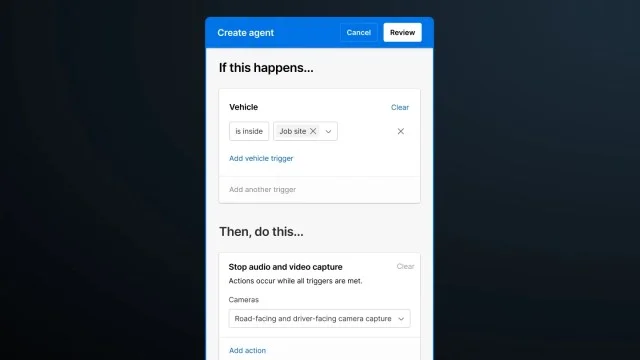
Fleet teams can set camera behavior and safety alerts to change automatically when a vehicle enters a designated site. Motive’s Geofence Privacy and Event Suppression applies those rules on the device, allowing them to work even when cellular coverage drops. The controls are intended for locations where recording needs to pause or where specific alerts don’t match the work taking place.
Corporate yards, bus yards and other secure facilities may have privacy or union requirements that call for recording to stop on site. Some locations also produce events that aren’t useful measures of risk: stop sign detection at a landfill, hard brake detection in a quarry, or mobile device alerts at a refueling station. Without location-based rules, managers may have to change settings by hand or dismiss events after they appear.
That manual work can leave gaps in camera settings and add noise to safety reports. The geofence feature lets administrators define a site and select actions for a vehicle while it is inside that boundary. The camera behavior changes within seconds; once the vehicle exits, the device returns to the current settings in the Motive Dashboard.
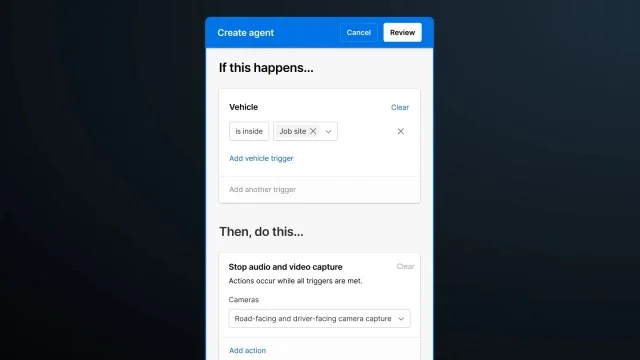
Set camera controls for designated locations
Administrators create rules from a prebuilt template using Agents, powered by Motive AI. The workflow is part of the Motive platform and uses safety and operations data that organizations already collect. A rule can apply to individual vehicles or vehicle groups, and to a particular geofence or a category of geofences.
For driver-facing privacy, a rule can turn on Driver Privacy Mode. This stops driver-facing recording and driver-facing event detection while the vehicle is within the selected area. A green LED indicator tells the driver that driver-facing recording is off.
A separate option stops camera capture from both the driver-facing and road-facing cameras. Collision detection also turns off under this setting, and the Motive Dashboard identifies that effect when administrators create the rule. The camera LED turns off to show drivers that recording has stopped.
These settings give operations teams a way to apply site-specific camera behavior without asking drivers to cover a lens. While the vehicle is inside the geofence, managers can’t live stream or access the live view. The distinction between the two options matters: Driver Privacy Mode stops driver-facing functions, while the camera-capture option stops both camera views and collision detection.
Suppress selected events while cameras keep recording
Teams can also leave cameras recording while disabling detection for particular safety events. For example, an administrator could suppress seat belt violation detection within a yard, or turn off all eligible events for a selected location. Disabling an event also silences its in-cab alert, which can reduce alerts for drivers and managers when the event doesn’t fit the site’s operating conditions.
Because the event is suppressed by the rule, managers don’t need to dismiss it manually. The source says this helps keep drivers’ Safety Scores accurate. Administrators can combine actions in one rule, such as turning off the driver-facing camera and stop sign detection at the same location. That lets a site’s camera and alert behavior reflect its operating needs through one location-based setup.
Rules run on the device, including offline
The device checks its location and applies the rule locally rather than waiting for a cloud connection. Motive says the change takes effect within seconds, with or without cellular coverage. That design is relevant for yards and facilities where connectivity may be limited: the vehicle can still apply its assigned settings after entering the geofence.
There’s no separate exit rule to configure. Once the vehicle leaves the boundary, cameras follow the current Motive Dashboard settings. Any settings changed while the vehicle was on site carry over. The device remains powered and continues reporting location and telematics, even while camera capture is stopped.
Motive says the feature is available through a phased rollout in the U.S. through Q4 ’26 for the AI Dashcam, with availability for AI Dashcam Plus planned soon. For fleet managers, the practical question is how to map site boundaries and choose which camera functions or events should change at each one. Those choices determine whether a rule addresses a real privacy requirement or removes alerts that don’t help teams manage risk at that location.
Get a tour of how Geofence Privacy and Event Suppression can be configured across fleet operations.
The post Prevent unnecessary alerts and stop recording at sensitive sites with Geofence Privacy and Event Suppression. appeared first on Motive.


